How I Set Up cmux With Per-Project Colors and AI Agent Access
I run five projects simultaneously. Before cmux, I had five Ghostty windows scattered across my desktop. Here is how I forked cmux to add per-workspace colors, templates, and AI agent access.
How I Set Up cmux With Per-Project Colors and AI Agent Access
I run five projects at the same time. Warren (fintech), Blogholio (blogging platform), Vortex CRM, ZephTicker (stock ticker for macOS), and a personal dashboard. Before cmux, I had five Ghostty windows scattered across my desktop, and I'd spend more time finding the right terminal than actually coding.
cmux solved this — but not out of the box. The stock version didn't support what I needed, so I forked it.
What cmux gives you
cmux is a native macOS terminal built on Ghostty. Think tmux but with a real sidebar, native notifications, and a scriptable CLI. Each "workspace" gets its own terminal session with a directory, and you switch between them with a click or a keyboard shortcut.
The real draw: it's built for AI agents. Claude Code, OpenClaw, Codex — whatever you're running — can connect to cmux through a socket and control workspaces programmatically. Notifications pop up when an agent finishes a task. It's the kind of thing that sounds gimmicky until you actually use it.
The Ghostty config underneath
cmux reads your existing Ghostty config, so start there. Mine is a dark Bloomberg-style theme with a neon palette:
# ~/.config/ghostty/config

font-family = JetBrains Mono
font-size = 12
font-thicken = true

background = #09090b
foreground = #e4e4e7
cursor-color = #00ff88
cursor-style = block

# 16-color neon palette
palette = 0=#1a1a2e
palette = 1=#D74E6F
palette = 2=#00ff88
palette = 3=#D3E561
palette = 4=#8056FF
palette = 5=#ED61D7
palette = 6=#04D7D7
palette = 7=#e4e4e7
palette = 8=#4B4B4B
palette = 9=#FE5F86
palette = 10=#00D787
palette = 11=#EBFF71
palette = 12=#8F69FF
palette = 13=#FF7AEA
palette = 14=#00FEFE
palette = 15=#FFFFFF
JetBrains Mono at size 12 with ligatures. The palette is deliberately high-contrast — I want each syntax color to pop against the near-black background.
Per-project workspace templates
This is where the fork comes in. Stock cmux doesn't support per-workspace colors or auto-loading workspace templates. My fork adds both.
You create a ~/.config/cmux/workspaces.json:
{
  "workspaces": [
    {
      "name": "Warren",
      "color": "#00ff88",
      "bg": "#0a1a0f",
      "directory": "~/Projects/Warren",
      "bar": { "position": "top" }
    },
    {
      "name": "Blogholio",
      "color": "#8056FF",
      "bg": "#120a1a",
      "directory": "~/Projects/Blogholio",
      "bar": { "position": "top" }
    },
    {
      "name": "CRM",
      "color": "#04D7D7",
      "bg": "#0a1519",
      "directory": "~/Projects/CRM",
      "bar": { "position": "top" }
    },
    {
      "name": "ZephTicker",
      "color": "#D74E6F",
      "bg": "#1a0a12",
      "directory": "~/Projects/ZephTicker",
      "bar": { "position": "top" }
    },
    {
      "name": "Dashboard",
      "color": "#D3E561",
      "bg": "#1a180a",
      "directory": "~/Projects/harry-dashboard",
      "bar": { "position": "top" }
    }
  ]
}
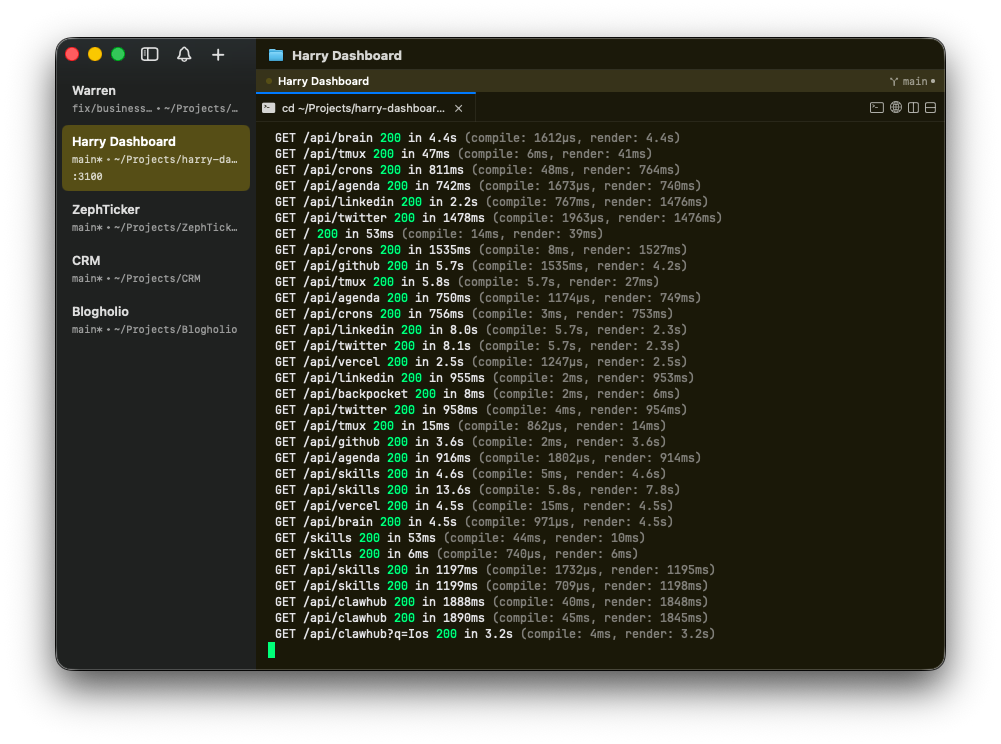
Each workspace gets its own accent color in the sidebar tab and a subtle tinted background. The color differences are small — you won't consciously notice them, but your brain does. When I glance at a terminal, I know which project it is before reading anything.
Launch cmux and all five workspaces load automatically, each cd'd into the right directory.
Letting an AI agent connect
cmux communicates through a Unix socket. By default, only child processes of cmux can connect (a security measure). But if you're running an AI agent from a separate process — say, an OpenClaw gateway running as a launchd service — you need to open it up.
In the fork, I added a Settings dropdown: Socket Access → Allow All. That lets any local process connect to the cmux socket.
From there, the agent can:
cmux ping                          # health check
cmux workspace list                # see all workspaces
cmux workspace select Warren       # switch workspace
cmux notify "Build complete" "Warren deployed to staging"
I use this with OpenClaw's gateway daemon. It runs as a background service, spawns coding sub-agents, and those agents can send notifications through cmux when they finish. No need to babysit terminal output.
The bridge workaround (pre-fork)
Before I forked cmux and added open socket access, I used a file-based bridge. You run this inside a cmux terminal:
while true; do
  [ -f /tmp/cmux-cmd ] && {
    bash /tmp/cmux-cmd > /tmp/cmux-out 2>&1
    rm /tmp/cmux-cmd
    touch /tmp/cmux-done
  }
  sleep 0.3
done &
Then from any external process, write a command to /tmp/cmux-cmd, wait for /tmp/cmux-done, and read the output from /tmp/cmux-out. Hacky, but it works if you don't want to fork anything.
What I'd change
The header bar that shows the git branch is useful but takes screen real estate. I keep it on top for all workspaces — putting it at the bottom conflicts with my muscle memory for terminal output.
The per-workspace background tinting only works through OSC escape sequences sent to the PTY. This means if you open a new split, it inherits the base Ghostty background until cmux re-applies the color. Minor annoyance, noticeable if you split terminals often.
And the sidebar theme system still needs work. I went through a few iterations trying to get custom sidebar colors right, and it's not fully where I want it. But the core functionality — colored tabs, workspace templates, agent access — that part's solid.